
SMS messaging is one of the basic and important applications on a mobile phone. Now days every mobile phone has SMS messaging capabilities, and nearly all users of any age know how to send and receive suchmessages. Mobile phones come with a built-in SMS application that enables you to send and receiveSMS messages. If you want to send the SMS programmatically then follow the following steps.
Sending SMS Messages Programmatically
Take a button on activity_main.xml file as follows.
<Button android:id=”@+id/btnSendSMS” android:layout_width=”wrap_content” android:layout_height=”wrap_content” android:layout_centerHorizontal=”true” android:layout_centerVertical=”true” android:onClick=”sendmySMS” android:text=”sendSMS” />
According to above code when user clicks the button sendmySMS method will be called. sendmySMS is user defined method.
In the AndroidManifest.xml file, add the following statements
<uses-permissionandroid:name=”android.permission.SEND_SMS”/>
Now we write the final step. Write the given below method in MainActivity,java file
publicvoidsendmySMS(View v)
{
SmsManagersms = SmsManager.getDefault();
sms.sendTextMessage(“5556″, null, “Hello from careerRide”, null, null);
}
In this example I have used two emulator. On the first Android emulator (5554), click the Send SMSbutton to send an SMS message to the second emulator(5556).
Describe the SmsManager class in android.
SmsManager class is responsible for sending SMS from one emulator to another or device.
You cannot directly instantiate this class; instead, you call the getDefault() static method to obtain an SmsManager object. You then send the SMS message using the sendTextMessage() method:
SmsManagersms = SmsManager.getDefault();
sms.sendTextMessage(“5556″, null, “Hello from careerRide”, null, null);
sendTextMessage() method takes five argument.
- destinationAddress — Phone number of the recipient.
- scAddress — Service center address; you can use null also.
- text — Content of the SMS message that you want to send.
- sentIntent — Pending intent to invoke when the message is sent.
- deliveryIntent — Pending intent to invoke when the message has been delivered.
How you can use built-in Messaging within your application?
You can use an Intent object to activate the built-in Messaging service. You have to pass MIME type “vnd.android-dir/mms-sms”, in setType method of Intent as shown in the following given below code.
 Intent intent = new Intent (android.content.Intent.ACTION_VIEW);

intent.putExtra("address", "5556; 5558;");// Send the message to multiple recipient.

itent.putExtra("sms_body", "Hello my friends!");

intent.setType("vnd.android-dir/mms-sms");

startActivity(intent);
What are different data storage options are available in Android?
Different data storage options are available in Android are:
- SharedPreferences
- SQlite
- ContentProvider
- File Storage
- Cloud Storage
Describe SharedPreference storage option with example.
SharedPreference is the simplest mechanism to store the data in android. You do not worry about creating the file or using files API.It stores the data in XML files. SharedPreference stores the data in key value pair.The SharedPreferences class allows you to save and retrieve key-value pairs of primitive data types. You can use SharedPreferences to save any primitive data: boolean, floats, int, longs, and strings.The data is stored in XML file in the directory data/data//shared-prefs folder.
Application of SharedPreference
- Storing the information about number of visitors (counter).
- Storing the date and time (when your Application is updated).
- Storing the username and password.
- Storing the user settings.
Example:
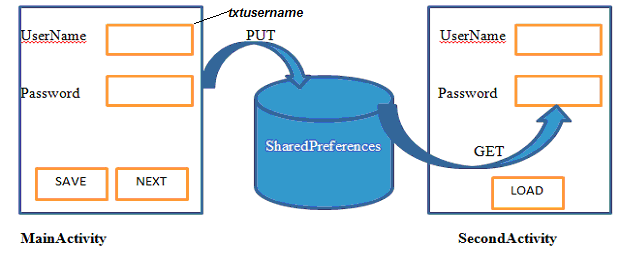
For storing the data we will write the following code in main activity on save button:
SharedPreferences sf=getSharedPreferences(“MyData”, MODE_PRIVATE);
SharedPreferences.Editored= sf.edit();
ed.putString(“name”, txtusername.getText().toString());
ed.putString(“pass”, txtpassword.getText().toString());
ed.commit();
In this example I have taken two activities. The first is MainActivity and the second one is SecondActivity.When user click on save button the user name and password that you have entered in textboxes, will be stored in MyData.xml file.
Here MyData is the name of XML file .It will be created automatically for you.
MODE_PRIVATE means this file is used by your application only.
txtusernameand txtpassword are two EditText control in MainActivity.
For retrieving the data we will write the following code in SecondActiviy when user click on Load button:
Public static final String DEFAULT=”N? A”;
DEFAULT is a String type user defined global variable.If the data is not saved in XML file and user click on load button then your application will not give the error. It will show message “No Data is found”. Here name and pass are same variable that I have used in MainActivity.
SharedPreferences sf=getSharedPreferences("MyData", Context.MODE_PRIVATE);
String Uname=sf.getString(“name”, DEFAULT);
String UPass=sf.getString(“pass”, DEFAULT);
if(name.equals(DEFAULT)||Pass.equals(DEFAULT))
{
Toast.makeText(this, “No data is found”, Toast.LENGTH_LONG).show();
}
else
{
Txtusername.setText(Uname);
Txtpassword.setText(UPass) ;
}
You may also like
 Mum’s the word for Instant Messaging apps
 16 Android Interview Questions and Answers
 Intresting features google android lollipop 5.0
 Six Ways to increase internet speed on android phone
 Object Oriented Basic Concepts and Advantages
 What made Lisp Different?
 CSS Notes Chapter 1 : Introduction to CSS
- Css Notes Chapter 4 : CSS IDs
- Css Notes Chapter 3 : CSS Classes
- Css Notes Chapter 5 : CSS Divisions
